
Samsung Gravity has been a successful line of affordable, slide-out QWERTY messengers for T-Mobile for several years now. With the latest addition to the family, Samsung not only improves the package, but takes it in a whole new direction. Unlike its predecessors, which were feature phones, the new Samsung Gravity SMART, as its name suggests, is an Android smartphone.
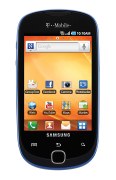
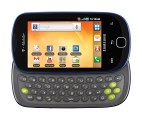
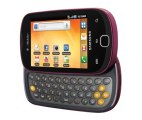
Samsung Gravity SMART official press shots
The Gravity SMART is clearly aimed at the first-time smartphone users who are looking for a sensible device, which will deliver an Android experience at an affordable price. It is by no means a Galaxy S II, but it is not priced like one either. It packs a lot of droid functionality in a small, well-built package. Now let’s see what the Gravity SMART has to offer.
Key Features
- 3.2" 16M color, TFT capacitive touchscreen with 480 x 320 pixels resolution, multi touch
- Full four-row, slide-out QWERTY keyboard with a customizable social networking key
- ARMv6 800MHz CPU, 270MB RAM, 150MB of user-available storage
- Android 2.2.2 (Froyo) with TouchWiz 3.0 UI
- Quad-band GSM and dual-band 3G support
- Wi-Fi Calling enabled
- Wi-Fi 802.11 b, g, with hotspot functionality
- GPS with A-GPS connectivity; digital compass
- 3.15 MP autofocus camera
- QVGA video recording @30fps
- microUSB port (charging) and stereo Bluetooth 3.0
- microSD slot (up to 32GB, 2GB in box)
- Standard 3.5 mm audio jack
- Accelerometer and proximity sensor
- Web browser with Flash support
- Smart dialing
Main disadvantages
- QVGA-only video recording
- No shutter key
- No secondary video-call camera
- No ambient light sensor
- No dedicated video player app
- Android 2.2 Froyo, instead of latest Android 2.3 Gingerbread
As you can see, the Samsung Gravity SMART is by no means one of the Android super phones. If you are looking for a high-resolution screen, HD capable camera, and graphic intense gaming, this is not the device for you. Instead, the Gravity SMART is a great messenger and social networking companion with a comfortable keypad.
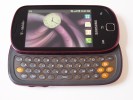
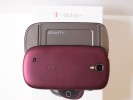
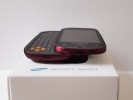
Samsung Gravity SMART live shots
Now that we know the Samsung Gravity SMART weaknesses, it is time to find whether this little droid can deliver where its strengths are. Hit the next page for the hardware inspection.
Editorial: You might notice that this review is shorter than usual and doesn't include all of our proprietary tests. The reason is it has been prepared and written far away from our office and test lab. The Samsung Gravity SMART is a US-only phone, so it will probably never get to the shores of the Old Continent. Still, we think we've captured the essence of the phone in the same precise, informative and detailed way that's become our trademark. Enjoy the good read!
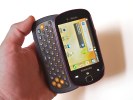
The Samsung Gravity SMART is quite well built for its price range. The QWERTY keyboard is a pleasure to use and, overall, the device is perfectly proportioned and easy to operate.
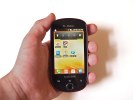
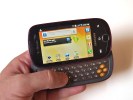
User interface: Froyo and TouchWiz
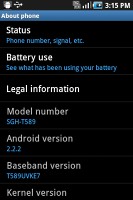
The Samsung Gravity SMART runs Android 2.2.2 Froyo, dressed in Samsung’s own TouchWiz UI. You get four docked icons at the bottom of the home screen, which have become a signature for Samsung, as well as a serious issue of contention with certain competitors.
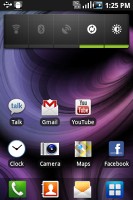
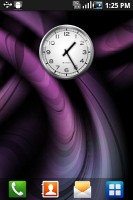
The Gravity SMART supports up to seven homescreen panels, which can host every widget and shortcuts you’ll ever need. However, if you don’t need all seven of them, the unnecessary ones can be deleted. Doing so makes the phone noticeably snappier.
Sliding the notification bar down reveals the Android notification area. It is majorly overhauled from the stock Android one and holds five switches for Wi-Fi, Bluetooth, GPS, sound and rotation-lock.
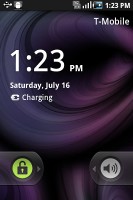
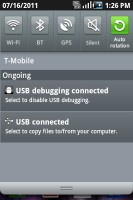
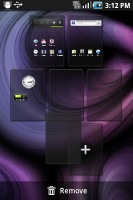
The notification area and the lockscreen • editing the homescreens
Pressing the menu button while on the homescreen lets you add variety of content on it (a press and hold on the homescreen does the same thing), add or delete homescreen panels, change the wallpaper or quickly access the settings menu Live wallpapers are supported as well, but none come preinstalled. There are however many available in the Market. The contextual menu has shortcuts too for search and notifications.
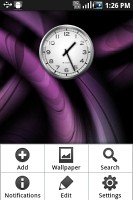
Homescreen edit mode
By default, the main menu consists of side-scrollable panes, much like the homescreen, instead of a vertical scrollable grid (like in the vanilla Android). List view is not available.
You can rearrange icons freely. Icons are shown in a 4x4 grid with a total of 16 icons per menu screen.
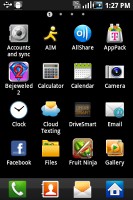
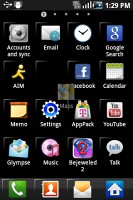
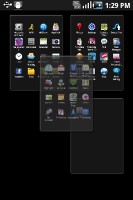
The main menu • editing the main menu
An interesting change in the Android 2.2-compatible version of Samsung’s TouchWiz launcher is the built-in task manager. Complete with a homescreen widget that shows the number of currently activeapps, it saves you the need to install a task killer. It gives the user details on RAM usage, the amount of free storage and can be accessed through virtually any spot in the UI by holding the home button.
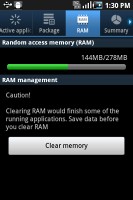
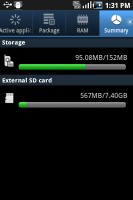
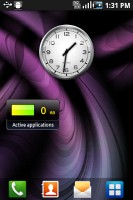
The task manager
Synthetic benchmarks
We’ve already told you that the Samsung Gravity SMART is no powerhouse of a droid. The device’s benchmarks confirm this fact. We ran a couple of them and here are the results.
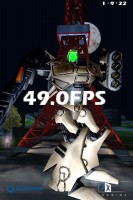
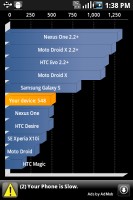
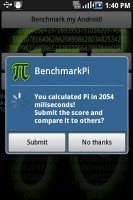
Quadrant • Neocore • Pi
The Gravity SMART has an ARMv6 800 MHz processor and 270 MB worth of user available RAM. In a world of dual-core Android, it’s only natural that the Gravity SMART doesn’t exactly top the performance charts
The phonebook is great
The phonebook in the Samsung Gravity SMART is nothing short of excellent. It has unlimited capacity and all the functionality you could want. The contacts application displays contacts stored in the SIM card, in your Google account or in the phone memory.
The TouchWiz interface has been at work in the phonebook bringing some special features. Instead of just flick-scrolling the list of people in the phonebook, you can search the entries by either typing the name of the person in the search box or by using the alphabet scroll at the right side of the screen.
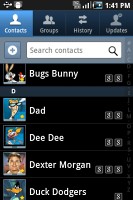
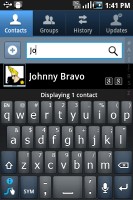
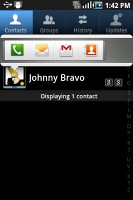
The Gravity SMART phonebook
The main contact list view hides some useful shortcuts too. Swiping your finger to the right on a name will dial the contact’s default number, while a swipe to the left will start the message composer. The side-sweeping shortcuts are part of the TouchWiz UI and work in other lists too where you have names or numbers (such as the messaging menu).
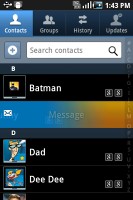
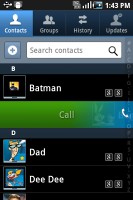
Swiping on a contact’s name or number in the log will start a call or launch the message composer
Telephony is good
The Gravity SMART handled calls great. It held on to signal everywhere we took it and the in-call quality was superb. There were no dropped calls either.
Smart Dialing is available and works beautifully. Tap a digit and it searches both contact numbers and names for it. If more than one contact is found, there’s a number and an arrow, which show you the rest of the matches.
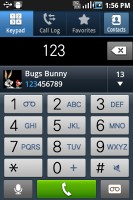
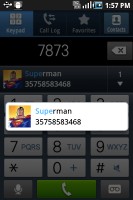
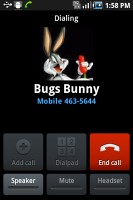
The Gravity SMART has smart dial
Thanks to the proximity sensor, your screen will automatically turn off during a call. The available options during a call include taking a note, using the keypad, muting, holding the call or adding another call to this conversation.
The call log is situated within the dialer. It shows all the dialed, received and missed calls in one list, which can be filtered to show only certain type of events.
The messenger is superb
Being a QWERTY messenger droid, the Samsung Gravity SMART features all Android-inherent messaging prowess you’d want.
The messaging application itself is quite straightforward. It has a new message button and bellow it are all the received messages organized in threads.
The same swiping functionality found in the phonebook has been integrated here as well. A swipe to the left starts a new message, while swiping to the right will start a call.
The application-specific search lets you quickly find a given message among all your stored SMS and MMS.
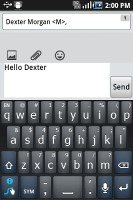
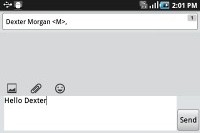
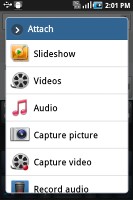
Creating a message on the Gravity SMART
Adding multimedia content to a text message automatically turns into an MMS. You can just quickly add a photo or an audio file to go with the text or – depending on your needs – you can choose to go into a full-blown MMS editor.
Email can be handled either by the standard Gmail app or the generic email app. The Gmail one supports batch operations, which allows multiple emails to be archived, labeled or deleted. Multiple Gmail accounts are supported too.
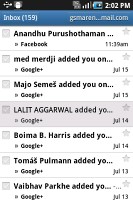
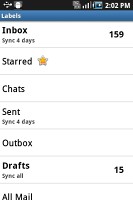
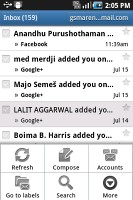
The Gmail app and Inbox
The generic email application is used for all your other non-Gmail email accounts and supports multiple POP or IMAP inboxes. You have access to the original folders that are created online, along with the standard local ones such as inbox, drafts and sent items.
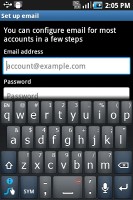
The standard Samsung email app
Google Talk handles the Instant Messaging department. The G-Talk network is compatible with a variety of popular clients like Pidgin, Kopete, iChat and Ovi Contacts.
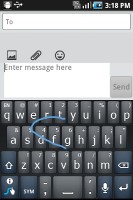
Along with the hardware QWERTY keyboard, you also get a neat SWYPE virtual keyboard preinstalled. This gives you an extra option when typing. The virtual keyboard for example, is quite convenient when you hold the device in one hand – it is a task which you will not be able to manage with the hardware QWERTY.
Android gallery is nice as usual
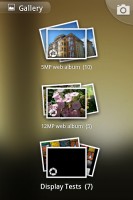
The Galaxy Pro uses the standard Android gallery, which is great. It offers the good functionality, we’re accustomed to, cool 3D looks and nice transition effects, but unfortunately (again) only shows a downsized version of your images.
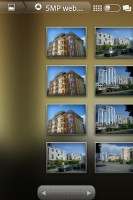
The different albums appear as piles of photos, which fall in neat grids once selected. Online albums at Picasa show up as separate stacks as well.
Beautiful gallery
You can also organize the photos by date via a button in the top right corner which switches between grid and timeline view.
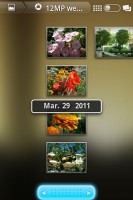
In grid view, there’s a date slider, which can also be used to find photos taken on a certain date.
If you are checking out a photo, you can use the tabs at the top of the screen to jump back to the main gallery screen, without having to go through its folder.
The gallery supports finger scrolling or panning so you can skip images without having to return to the default view. Just swipe to the left or right when viewing a photo in fullscreen mode and the previous/next image will appear.
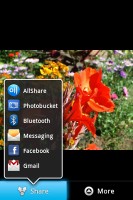
The usual Android gallery
There are tons of options for a picture – you can crop or rotate it directly in the gallery. The Send feature offers quick sharing via Picasa, Facebook Email apps, Bluetooth or MMS.
Minimum functionality video player
The video player of the Samsung Gravity SMART is barely worth mentioning. It covers only the basic 3GP and MP4 formats and doesn’t even have an icon in the menu. The only way to get at it is through the file browser or the gallery. Watching DivX or XviD movies is a no-go with the default video player.


Basic video player
The on-screen controls boil down to play/pause and skip buttons as well as a scrollable progress bar.
TouchWiz music player
The music player of the Samsung Gravity SMART has benefited greatly from the TouchWiz UI. You can sort the music using the sorting options, which are neatly displayed in a tabbed interface. Among the options are current playlist, all tracks, playlists and albums, artists and composers. You are free to remove some of the filters to make the interface easier to navigate.
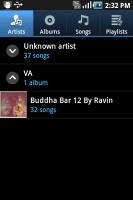
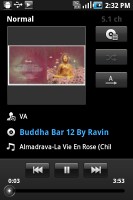
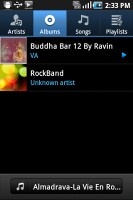
The TouchWiz music player
Music experience on the Gravity SMART can be enhanced thanks to the included equalizer in the settings menu.
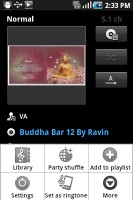
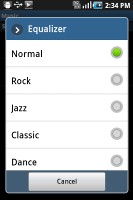
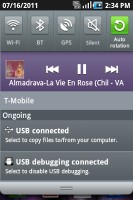
Options • notification area music player view
As far as usability and looks go the music player on the Gravity SMART is top notch and offers everything from creating playlists to enabling equalizer settings and enjoying an enhanced audio experience
Android Market keeps getting better
The Samsung Gravity SMART is running on Android version 2.2 (Froyo) so it’s a little behind its family members. The Android Market is where you can download thousands of apps for whatever you can think of and the device will have no problems running them.
The structure of the Android Market is quite simple – featured apps on top and above them, three sections (Applications, Games and Downloads). There is also a shortcut up there for initiating a search.
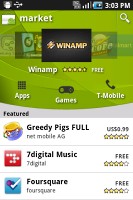
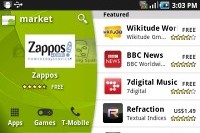
The Android Market will give you access to over 100 000 applications
The Applications and Games sections are divided into subsections (e.g. Communication, Entertainment etc.) so you can filter the apps that are relevant to you. Of course, there is also an option of displaying them all in bulk, but you’ll probably need days to browse them all that way.
There are all kinds of apps in the Android market and the most important ones are covered (file managers, navigation apps, document readers etc.).
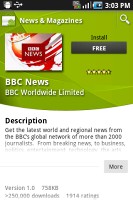
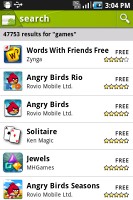
The apps description and search results
The Gravity SMART will run effortlessly just about any app from the Android Market today. The only ones we would not recommend you are the latest graphic intense video games. The phone’s hardware is obviously a limitation which will affect your experience negatively.
Google Maps is a must
The Samsung Gravity SMART packs a GPS receiver, which got a satellite lock in about five minutes with A-GPS turned off. A-GPS can speed this up quite a bit, but requires Internet access.
Google Maps is on board, complete with Navigation, including public transportation directions from the latest update, which can do voice-guidance for free. Availability is not a problem in the United States.
Still, even without Navigation, there is some kind of guidance: your route and current location appear on the screen so you'll reach your destination eventually, but you’ll need a co-pilot to read you the instructions for that one.
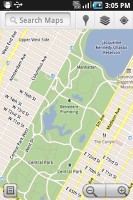
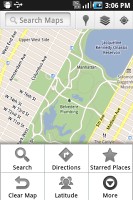
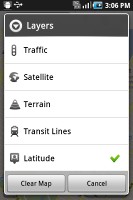
Google Maps
Google Maps has evolved a lot since it came into being. The latest version offers a nice 3D looking render of the buildings, along with a number of location based search options.
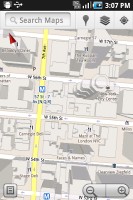
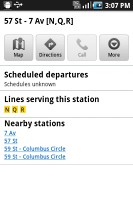
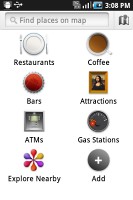
Google Maps options
Quite naturally, the app also supports the Street View mode. In fact, this mode is probably the best part of Google Maps. If the Street View is available in the area you're interested in, you can enjoy a 360-degree view of the surroundings. When the digital compass is turned on it feels like making a virtual tour of the location!

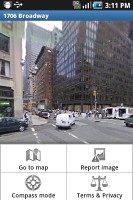
Street View
With such a complete package which keeps getting better, Google Maps needs no alternative at the moments. Should you decide that you want to be different, you can explore the Android Market for other options. Just keep in mind that they will be paid and will come short from the Google experience.
Apps from T-Mobile and Samsung
As a carrier branded device, the Samsung Gravity SMART comes with several preloaded apps which are worth noting.
The AllShare app for example allows you to stream your Samsung’s content to another device over your Wi-Fi network. Its setup is easy and intuitive.
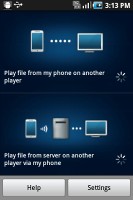
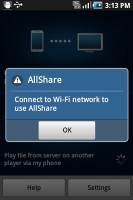
The AllShare app
Lookout is an app which helps you backup your device and protect it from the lately popular malware and spyware attacks on Android. Its most important option however, is helping you locate your precious droid in case it is lost or stolen.
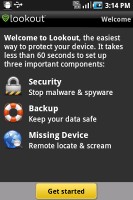
The Lookout app
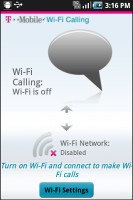
Finally, you get Wi-Fi calling which has been a T-Mobile staple for some time now. For an additional $10 towards your wireless plan, you can make unlimited calls over a Wi-Fi network. The setup is easy and the potential to save money is huge.
Conclusion
After spending significant time with the Samsung Gravity SMART, we came fairly impressed with it. Obviously, it wasn’t the spec sheet or the mind-blowing performance of the device which got to us. It was the fact that it got the job done on most occasions without breaking any sweat.
As a successor of a family of feature phones, the Gravity SMART is clearly aimed at the people who are about to make the jump to smartphones. Even on a seriously developed market such as the one in the United States, there are still plenty of people who are not familiar with the concept of having a device, which does more than calling and texting. As far as this audience is concerned, the Gravity SMART is bound to succeed.
As of this moment, the Samsung Gravity SMART is free on a two-year contract and costs $249.99 without commitment. Interestingly enough, there are no alternatives with the sliding keyboard form factor in the same price range in the US. We did however, manage to find a few other viable options.
Samsung Dart is another alternative from within the T-Mobile droid offerings. It is also free on a two-year contract, and costs the same as the Gravity without one. It does have less powerful hardware than the Gravity SMART, along with a missing QWERTY keyboard and a camera flash though.
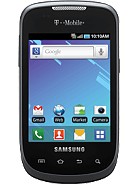
Samsung Dart
LG Optimus T for T-mobile is another alternative. It is running on a less powerful 600MHz CPU, and lacks the hardware QWERTY, but will still have you covered as far as the rest of the specs go. The Froyo packing budget droid can be yours for free on a contract as well. Without one, it costs the highly acceptable $189.99.
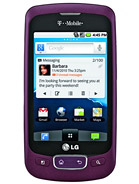
LG Optimus T
In case GSM networks are not your cup of tea, you can check out Samsung Replenish for Sprint Wireless. This eco-droid is powered by a 600MHz CPU and runs Android Froyo as well. Its full QWERTY keyboard has dropped the slide-out form factor and is not as comfortable to work with. You do however, have the option of getting a solar charging battery panel, along with eco-friendly apps to feed your environmental conscience.
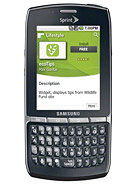
Samsung Replenish
The latest arrival to this party is the HTC Status – the U.S. version of the HTC Chacha. Having just been released, it can give the Samsung Gravity SMART a serious run for its money. The Status runs on the latest Android 2.3 Gingerbread, dressed in HTC Sense, and has a serious knack for social networking. Its screen has the same resolution as the unit in the Gravity SMART but, due to its smaller size and higher pixel density, is more of a pleasure to look on. The Status does also have a better 5MP camera unit, along with a front facing one for video calls. It can be yours for $49.99 on a two year contract with AT&T.
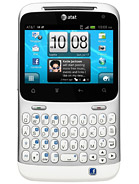
HTC Status
As you can see, there are quite a few options out there but none of them has quite the same form factor as the Samsung Gravity SMART. The slide-out QWERTY messenger from Samsung shows us clearly that the feature phones are on their way out of the U.S. market. In this aspect, we can clearly look at it as a game changer

No comments:
Post a Comment